Printable QR code stickers: make a sheet and print it so it scans
Make a sheet, print at 100%, test with your phone.
Make a full sheet of QR code stickers with the free maker below and print it on normal paper or sticker paper with any home printer. Whether a printed code scans depends on the print scale, the size, the contrast, the white space around the code and where you place it. This guide covers each of them, for your own sheet and for a TagTalk tag.
- Free sheet makerA full page of QR code stickers, no account and no watermark.
- Made in your browserWhat you type is not sent to TagTalk and is not stored.
- Prints to scaleA 10 mm control square shows the sheet came out at 100%.
Updated

 TagTalkExampleA passer-by“Hi! Your boot is still open.”
Free tool
QR code sticker sheet maker
Type a link or a short text, pick a sticker size and print a full sheet of QR code stickers on A4 or US Letter. It works on plain paper and on sticker paper. No account, no watermark.
The sheet is made in your browser. What you type is not sent to TagTalk and is not stored.
Loading the sticker sheet maker…
In short
A QR code stays readable when it is large enough for the distance, has enough contrast and white space, and sits on a flat, clean spot without reflections.
What you need to know
Make a sheet of QR code stickers
Use the free sticker sheet maker at the top of this page. Type a link or a short text, add a line such as “Scan me” if you like, choose a sticker size from 25 to 70 mm and print the sheet on A4 or US Letter. The sheet is made in your browser: what you type is not sent to TagTalk. A code made this way always shows exactly what you typed, so only put in what a stranger may see.
Can you print a QR code on normal paper?
Yes. Any inkjet or laser printer can print a QR code on normal paper. Indoors or behind glass, paper works fine. Outside, rain and sun wear it out quickly, so use weatherproof sticker material or laminate the tag.
Step by step
Open the print-ready PDF, turn off “fit to page” and print at 100% scale. Measure the 10 mm control square to check the scale. Cut along the dotted line, stick the tag on a clean, flat spot and scan it once with your own phone.
Print at 100% scale
Turn off "fit to page" in your print settings. Each TagTalk sheet has a 10 mm control square: measure it after printing to confirm the scale is right.
Choose a size for the distance
TagTalk tags come in Compact, Standard and Large. Phones read a printed QR code from about 2 cm wide at close range, but bigger is easier. A rule of thumb is that a code scans from about ten times its width: a 3 cm code works from roughly 30 cm. Where people stand further away, choose a larger tag.
Printing on sticker paper
A4 sticker paper works in a home printer: pick the type made for your printer, inkjet or laser. Matte sticker paper reflects less light than glossy paper. Print a test page on plain paper first so you don’t waste a sheet. For outdoor use, choose weatherproof sticker material or laminate the tag after printing.
Contrast and coloured paper
Cameras read dark modules on a light background best. Print in good quality and avoid low ink, faded colours or a background that shows through. Coloured paper works if it is light; avoid dark, metallic or very shiny paper, and don’t invert the code to light on dark, because not every camera reads that reliably.
White space around the code
Every QR code needs an empty border. The TagTalk design already includes it, so do not cover it with tape, a frame or another sticker.
Cut and place
Cut along the dotted line, clean the surface and place the tag on a flat, smooth spot. Strongly curved or rough surfaces can distort the code.
Light and reflection
Direct sunlight or a lamp reflecting on glass can make scanning harder. Choose a spot where the code is not constantly in a reflection and where there is some light at night.
Test before you leave it
Scan the tag with your own phone once it is in place, ideally with two different phones. Wipe it clean now and then with a soft, damp cloth.
Quick checklist
- Did you print at 100% and check the 10 mm control square?
- Is the border around the code free of tape, frames and other stickers?
- Is the code out of reflections and harsh light?
- Did you scan the tag yourself once it was in place?
How TagTalk works
Three steps. Your number stays out of sight the whole time.
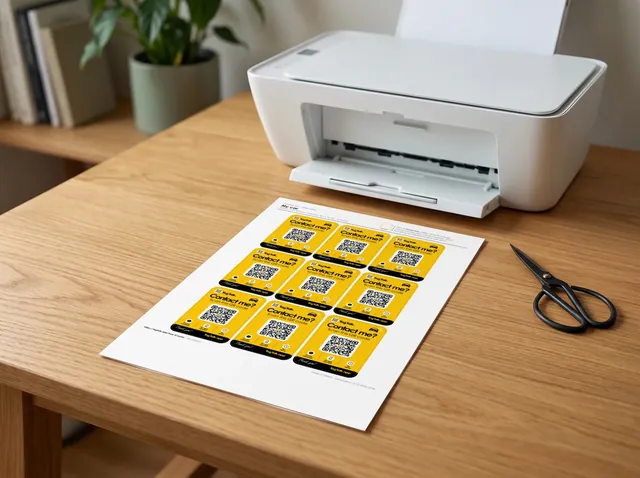
Print
Print your tag at home and cut it out.
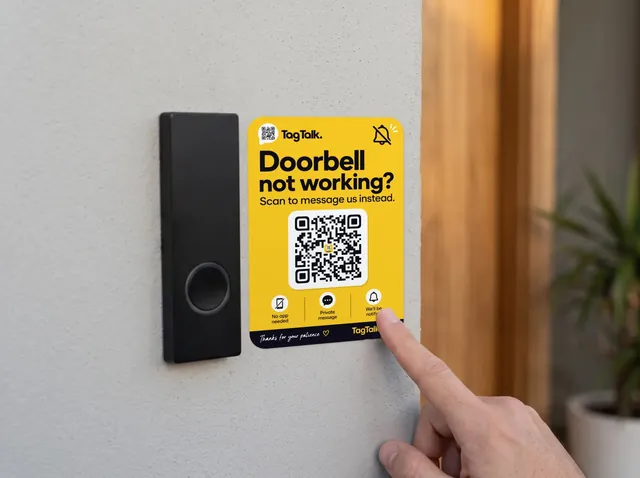
Stick
Put it on your car, door or anything you might lose.

Read
Get a notification and reply from your dashboard. Your number stays private.
Frequently asked
Short answers to what people ask most.
Is the QR code sticker sheet maker free?
Yes. You can make and print as many sheets as you like without an account, and there is no watermark on the stickers.
Do you store the link or text I type?
No. The sheet is made in your browser. What you type is not sent to TagTalk and is not stored.
Which sticker paper fits the sheet?
Any full-sheet A4 or US Letter sticker paper for your type of printer, inkjet or laser. Print the sheet at 100% scale and cut along the dotted lines.
Can you print a QR code on normal paper?
Yes, with any inkjet or laser printer. Print at 100% scale. Indoors or behind glass paper is fine; outside, use weatherproof sticker material or laminate it.
How big should a printed QR code be?
Phones read a printed code from about 2 cm wide up close. Plan for a scan distance of about ten times the width of the code and place it where people can get close.
Why does my printed QR code not scan?
Usually because of wrong print scale, low contrast, a reflection or a covered border. Check the 10 mm control square, print again in good quality and try a different angle.
Can I print my tag at a print shop?
Yes. The print-ready PDF works at home and at a print shop. Ask them to print at 100% scale.
Can I print a QR code on coloured paper?
Yes, if the paper is light and the code stays dark. Avoid dark, metallic or very shiny paper.
How do I make a printed tag weatherproof?
Print on weatherproof sticker material or laminate the tag. Behind glass it stays protected from rain and dirt.
Related guides
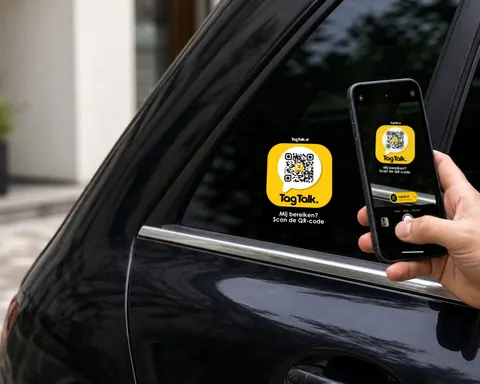
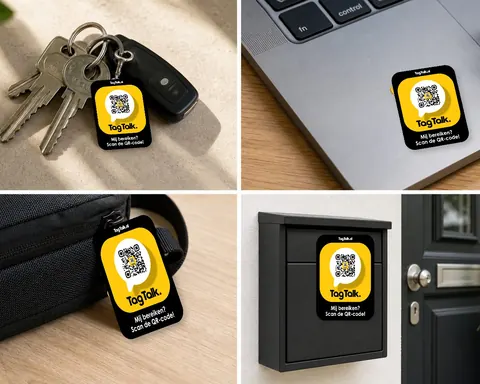
Be reachable without sharing your number.
One tag, and anyone who needs you can send you a message. You decide how you get notified.